
Message List
Platform messages are accessed by selecting the envelope icon in the heading.
If you have any unread messages, there will be a small red indicator next to the menu item.
The messages lists includes an Inbox for received messages, and Sent for message you have sent (or have been sent by the platform on your behalf.)
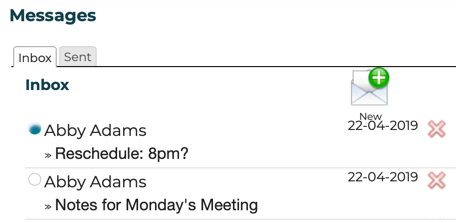
Click New to create a new message. See Creating Messages for more information about creating and addressing messages.
Unread messages in your Inbox are indicated with a solid circle in the far left column. Previously read messages have a hollow circle. Click anywhere on the row and the selected message will be displayed.
Message Details
The selected message's window looks like most any other webmail message window. Some messages include action buttons or other links, allowing you to confirm or reschedule a meeting or approve a work-flow. Messages may also contain file attachments.
You can delete the message (which will also delete the attachment!) or reply to non-system generated messages. (You can reply only from the detailed view of the message.)
See Message Details for more information about the message detail view.
Additional Message Context
Some messages have additional context. Most commonly, these are messages between a user and an Expert regarding a specific meeting. You'll see the context in the message list. The context is displayed as a bracketed blue link.
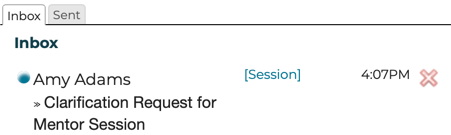
Clicking on the context link will get you to the related meeting.
See also:
Search:
Still need help?
- Go to Help Center
- Using Help Center
- Send us a note right now:
- Email us at support@trustedpeer.com