
Creating Messages
Click on New or Reply to compose a message. This creates a popup form:
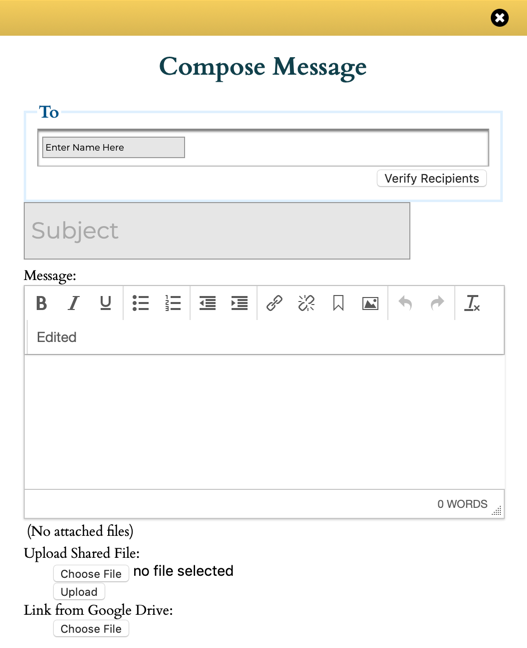
Message Recipients
Recipients may be entered by typing their names in the To field. Be sure to select the named recipient from the auto-complete suggestions: merely typing their name or email address will not work.
Some message replies are automatically addressed for you and no To field is displayed.
To preserve privacy and encourage organized communication, most users cannot simple message anyone on the platform. You can reply to anyone (or any group) who sent you a message. You can address a new message only to a select set of users, depending on your roles and responsibilities:
- Content Managers
- Can message anyone. You are not a content manager.
- Experts
- Can message other Experts. The idea is that Experts are already visible to everyone on the platform and should be able to exchange ideas. They can also message any (non-) Expert with whom they've had a meeting. This allows them to continue an established relationship. Experts may not message any other non-Expert. Non-Experts are not visible on the platform, and we maintain this privacy by not exposing this information. You are not an Expert.
- Users
- Non-Expert Users can only message Experts with whom they have scheduled a meeting. This restriction encourages Users to collect their thoughts and initiate an organized meeting in order to use the Expert's time efficiently and effectively.
There are some exceptions:
- If there is a button next to a name (such as a Blog author or Team Leader) you can message them directly by clicking on that button.
- Everyone can message the TrustedPeer Manager: just type their name.
In addition to addressing individual users, there may be some group aliases available. These will be suggested as you type in the recipient input field. Aliases may include Browse Categories, Group / Team names, and roles. See Message Aliases for a detailed description of available aliases.
The button can be used to list all the recipients for this message. This is especially useful if you're using an alias and not sure who is included with the alias.
If you have a question or problem about the platform, you can always message Support by using the form found by clicking on Help at the top of any page (and at the bottom of this Help page.)
Reply All Recipients
If you're replying to a message, and the message was originally sent to more that one person or group, you have the option to Reply All. By default, this is not enabled, but you can click the checkbox which will enable the Reply All list. You can selectively remove people from the Reply All list, if you like. To verify the complete list of recipients, use the button.
Message Contents
Enter what you like within the Message input field. You can use formatting, include images if useful. Recall that the message itself will not be sent to external email address, merely a notice that there is a new platform message. The Subject line will be sent to the recipient, so use that to your advantage.
Attachments
You can include attachments with your message. Note: attachments never leave the platform. Recipients will be notified of the message, but will have to sign into the platform before being able to view attachments.
Pressing Send
When you send a message, the recipient(s) will be notified by regular email that they have a new message. The subject line will be included in the email notice. The body of the message remains private and visible only on the platform. If the user has chosen to receive notifications via SMS a similar message is sent via Text Message.
Fortunately the recipient's email will include a link to this message, so to read it, all they need to do is click on the link. (The link is also included with the text message, if applicable.)
Users who directly reply to email actually send the message to our Reply Bot, which determines how to handle the incoming email. See Email Reply for additional information about our Bot.
See also:
Search:
Still need help?
- Go to Help Center
- Using Help Center
- Send us a note right now:
- Email us at support@trustedpeer.com